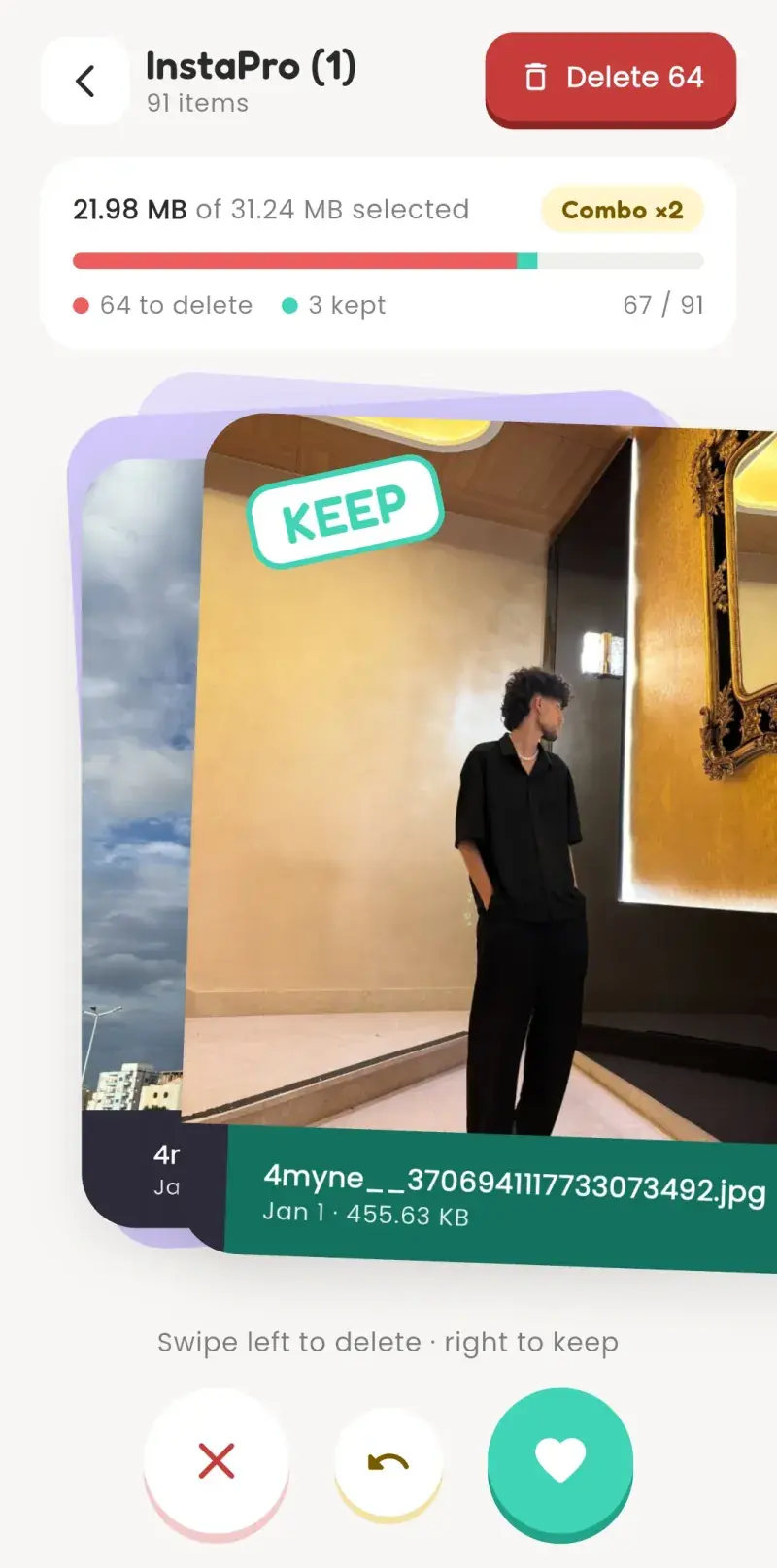
how to do it with soap
- 1
check your storage
Settings → Storage shows how much space images and videos use.
- 2
swipe and clean
Left to toss, right to keep. Then clear similar groups and low-quality shots.
- 3
empty the trash
If your gallery or Google Photos has a trash or bin, empty it to reclaim space now.
don’t forget the trash
Many Android gallery apps keep deleted items in a trash or bin for a while. In Google Photos, deleted items stay in the trash for 30 days on Android 11 and up. Emptying it frees the space straight away.
backed up in google photos? read this first
If your photos back up to Google Photos, deleting a backed-up photo in the Google Photos app removes it from your account and your other devices too. Google Photos also has a Free up space option that removes device copies of photos that are already backed up. That saves phone space but doesn’t reduce what you store in the cloud. See Soap vs Google Photos.
why a swipe cleaner works
Most people never clean their gallery because it feels like a chore. Soap turns it into short sessions with XP, combos and streaks, so you clear a little every day instead of facing 10,000 photos at once. Make it a habit.
frequently asked questions
is soap the same as files by google?
No. Files by Google is a general file manager and cleaner. Soap focuses on your photos: swiping, similar groups and blurry-shot detection. See the full comparison.
does soap upload my gallery?
No. All scanning happens on your phone. Your photos are never uploaded.